Onboarding, step by step
What the setup wizard asks for after you create your Run account, in what order, and what happens if you skip a step.
The first time you open your workspace, choose whether you are registering as an artist or a label, then choose a plan, set up your label if included, and accept the agreements. If you are registering as an artist, have your artist name and any existing Spotify or Apple Music profile links ready.
Run saves completed steps to your account, so you can return to the same step on another device. Your Artist/Label choice is remembered in the current tab, including when you return from checkout; choose the first setup step if you need to change it. Save an open form before leaving it.
1. Your artist profile
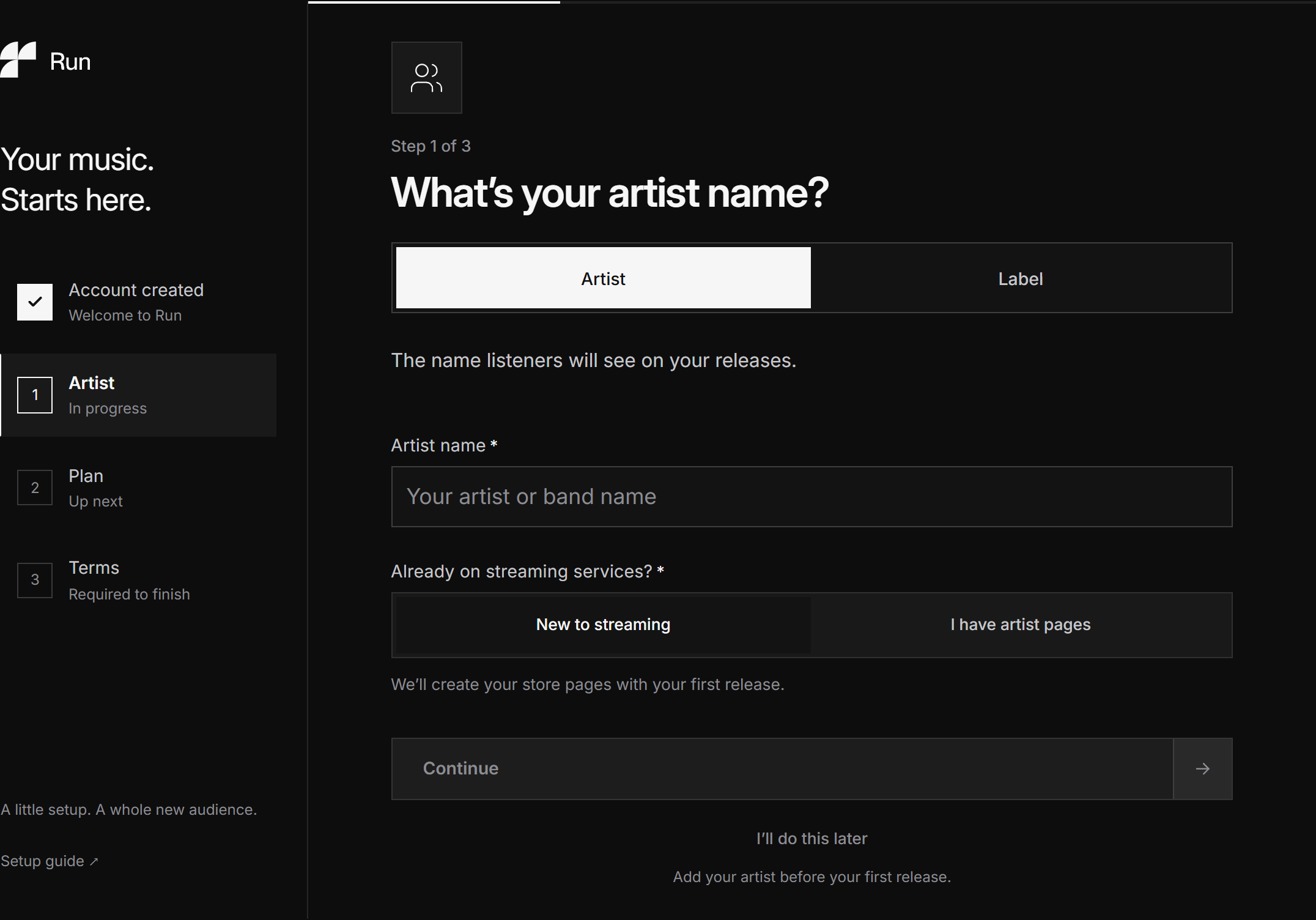
Use Register as to choose Artist or Label. Artist is selected initially. If you choose Label, continue to the White-label plan without creating an artist profile; you will name your label after its plan is confirmed. You can switch back to Artist before continuing.
On the Artist path, enter the artist name the stores will show. If you already have Spotify or Apple Music pages, connect them here by pasting a link: Run checks them against the store and links your releases to the pages you already have, so your catalog does not get split across a duplicate profile.
The form opens on “New to streaming”, so you can start with your artist name. Choose “I have artist pages” in the same form to connect existing pages. For new artists, the stores create your pages on first delivery and Run picks them up automatically afterwards.
 View full-size
Choose an earlier setup step to revisit your choices before finishing. Completed steps are saved; save your profile before leaving its form. You can also skip this and add artists later from Artists. See Your roster and artist slots and Connecting your store pages.
2. Choose a plan
If you registered as an artist, pick Free, Artist or White-label. If you registered as a label, this step offers only White-label. Both paths let you choose monthly or yearly billing. You keep 100% of your rights on every plan. Each row shows the price and its release and artist allowances. Expand the selected plan’s features to see its royalty split and everything included. Plans and what they include has the full comparison.
The step starts with monthly billing. The Artist path recommends Artist and lists Artist, Free, then White-label; the Label path selects White-label. Choose Continue with your selected plan to proceed. Selecting a row does not start checkout. Expand Everything included with your selected plan for its full features.
You can choose yearly instead; the price shows the total charged in one payment and the saving against twelve monthly payments. Your plan selection and billing choice stay in place when you review an earlier setup step.
On the Artist path, staying on Free is a choice, not a delay: the allowance is 1 release a month and it refills, so nothing forces you off it. To see these choices from the Label path, choose the first setup step and select Artist.
Continuing with a paid plan sends you to Stripe to pay, then back to the wizard. Two things worth knowing:
- If you cancel at Stripe, nothing is charged and you land back on this step. Pick again; the Artist path also lets you continue on Free.
- If you pay and then close the tab, the payment still lands. The next time you open setup, the step says which plan you are on and offers a Continue button.
If you already have an active paid plan, setup keeps it. If it does not include a label slot, you can upgrade from Settings after setup. If label checkout is temporarily unavailable, choose Check again or Register as an artist instead to return to the Artist path.
3. Your label
This step only appears when your confirmed plan includes a custom label. Choosing Label at the start does not create one immediately. Name it here and it becomes the record label the stores display on your releases, in place of the Run label. You can also skip this step and add it later.
Enter your Label name and check Preview on stores as you type. Choose Create label and continue, or I’ll do this later to leave it for another time. If you already created a label during setup, its saved name appears here with Continue to terms.
The name is worth a moment’s thought, because it is public and it is what the stores show. You can rename a label yourself right up until its first delivery. After that it takes a support request. See Your own label.
Everyone else goes straight from the plan to the agreements, and releases ship under the Run label.
4. Accept the agreements
Two documents: the Terms of Service, which covers using Run at all, and the Distribution Agreement, which covers distributing music through it.
The step highlights your music ownership and control over your releases. Expand What you’re agreeing to for a short summary covering the distribution licence, ownership and clearances, disclosure of AI use, your revenue share and takedown rights. Both documents link to their full text and show the editions you are accepting. Read the full documents before continuing.
One checkbox covers both documents. Tick it after reviewing them, then choose Accept and finish setup. The next screen recaps your setup and helps you start your first release.
Run records which version you accepted and when. If the tab has been open a while and a new version was published in the meantime, accepting reloads the step first: what you accept has to be what you read.
The Privacy Policy is deliberately not part of this. It is published for you to read, not something you sign. See Agreements.
5. Your first release
The last screen recaps your setup. Choose your next action:
- Create a new release when your audio, cover and credits are ready.
- Import an existing release to start with its published metadata.
- Add an artist profile if you skipped that step.
You can save a release as a draft and finish it later. Your first release is the quickstart from here.
Skipping, and what it costs you
The artist and label steps can each be skipped and sorted out later from Artists, Labels and Settings. Staying on Free at the plan step is not a skip at all, it is a choice.
The agreements are the exception, and there is no way past them: you cannot submit a release until both are accepted, and accepting them is what finishes setup. If you leave before that, the workspace brings you back to setup. Once setup is complete, Settings keeps your agreement history and handles later updates.
The same applies when a version changes later: you are asked to accept the new one, and only new submissions wait for it. Your catalog keeps distributing and keeps earning.
If you were invited into someone else’s workspace
Accepting an invitation to work in a White-label workspace does not put you through this wizard. There is no plan to pick and no agreement for you to accept: the workspace owner holds both. You sign in and start on their catalog. See Inviting collaborators.